 MyToolsBench
Resize Image for Instagram
Instagram uses a different size for feed posts, portrait posts and Stories. This tool resizes to any of them exactly, in your browser, with nothing uploaded. Everything runs in your browser — nothing is uploaded. Need a smaller file instead? Compress or convert.
Drag the preview to choose which part of the image is kept. The same framing is used for every image in the batch.
How it looks
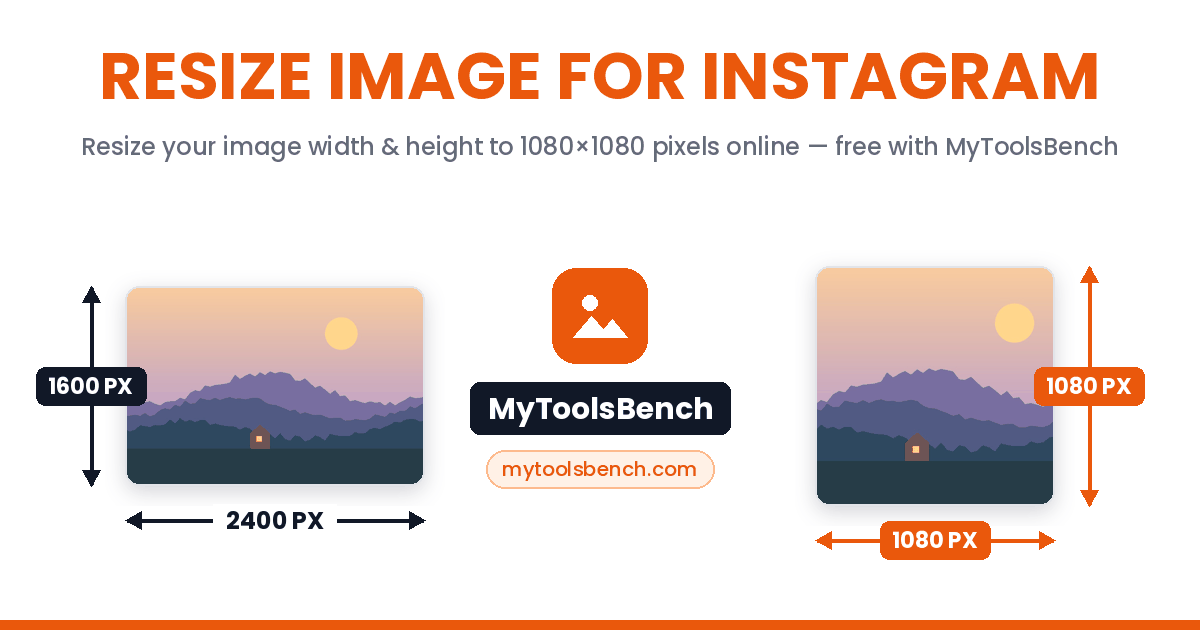
Resize Image for Instagram on MyToolsBench, resizing a photo for Instagram — before and after:
How to resize an image
Resizing changes the pixel dimensions of an image — making it fit a specific width, a percentage of the original, or a platform's required size. Smaller dimensions also mean a smaller file, which is why resizing is one of the most effective ways to speed up a page.
- Add your images, or drop them in.
- Choose By dimensions for an exact width and height, By percentage to scale, or a Preset for common social and screen sizes.
- Click Resize, then download each file or grab them all as a ZIP.
Exact or proportional
Set precise pixels with aspect-ratio lock, scale by percentage, or pick a preset. Whatever the target needs.
Batch, instantly
Resize a whole folder at once to the same dimensions. No upload wait, no queue, no file limit.
Nothing is uploaded
Your images are resized by your own browser and never sent to a server, so they stay completely private.
Resize for a specific platform
Jump to a common size:
Other image tools:
Will resizing reduce quality?
Making an image smaller is safe — you are discarding pixels you no longer need, and the result looks clean. Making an image larger than its original is where quality suffers, because the browser has to invent pixels that were never there, which looks soft or blocky.
As a rule: resize down freely, but avoid scaling up much beyond the original dimensions. If you need a smaller file rather than smaller dimensions, use the compressor instead.
Square sizes
Same width and height — profile photos, icons, product shots:
Landscape sizes
Wider than tall — screens, banners, covers and thumbnails:
Portrait sizes
Taller than wide — passport photos, forms and phone screens:
Change the aspect ratio
Paper, print & photo sizes
Paper and photo sizes in mm, cm and inches, plus DPI tools:
Resize for a platform
Ready-made sizes for social profiles and posts:
Online shop sizes
Product photos, banners and logos for Etsy, eBay and Shopify:
Resize tools
Batch resizing, DPI and crop tools:
The Instagram sizes that actually matter
Instagram displays four shapes, and every one of them is 1080 pixels wide:
- 1080×1080 — the square feed post. The safe default.
- 1080×1350 — the 4:5 portrait post. This takes up the most vertical space in the feed of any format Instagram allows, which is why so many accounts use it.
- 1080×566 — the 1.91:1 landscape post. Smallest presence in the feed; use it only when the image genuinely needs the width.
- 1080×1920 — the 9:16 full-screen format for Stories and Reels.
The single most useful thing to know is that Instagram re-compresses everything you upload. If you send an image wider than 1080 pixels, it is downscaled on Instagram's servers and compressed by their algorithm, which is tuned for file size rather than for your photo. Arriving at exactly 1080 wide means Instagram has less to do and the result stays closer to what you intended.
Portrait 4:5 is the format worth defaulting to if you are unsure. It shows larger in the feed than square without being cropped oddly, and a standard 4:3 phone photo converts to it losing only a small amount of width.
Frequently asked questions
Why does my photo look worse after posting to Instagram?
Instagram re-compresses every upload, and it compresses hardest when it also has to resize. Uploading at exactly 1080 pixels wide removes the resize step, so the only processing applied is compression. It will still be re-compressed, but the result is noticeably cleaner.
What is the difference between resizing and compressing?
Resizing changes the dimensions (the width and height in pixels). Compressing keeps the dimensions but reduces the file size by lowering quality. Resizing down does both at once, which is why it is so effective. For file size alone, use the compressor.
Will the aspect ratio be kept?
In dimensions mode, tick "Keep aspect ratio" and set just the width or height — the other is calculated automatically so the image is not stretched. Untick it to force exact dimensions, which may distort the image.
Can I resize many images at once?
Yes. Drop in as many as you like and they are all resized to the same setting in one go, then you can download them together as a ZIP. There is no limit on how many.
Are my images uploaded?
No. Resizing happens entirely in your browser. Nothing is transmitted or stored, and you can disconnect from the internet after the page loads and it still works.
Which format will I get back?
Images keep their original format where the browser supports it (JPG, PNG, WebP). Formats a browser cannot write, like GIF or BMP, come back as PNG. To change format on purpose, use the converter.
Social media sizes
Facebook, Instagram, LinkedIn, TikTok, Discord, Pinterest and more: