 MyToolsBench
Image Compressor
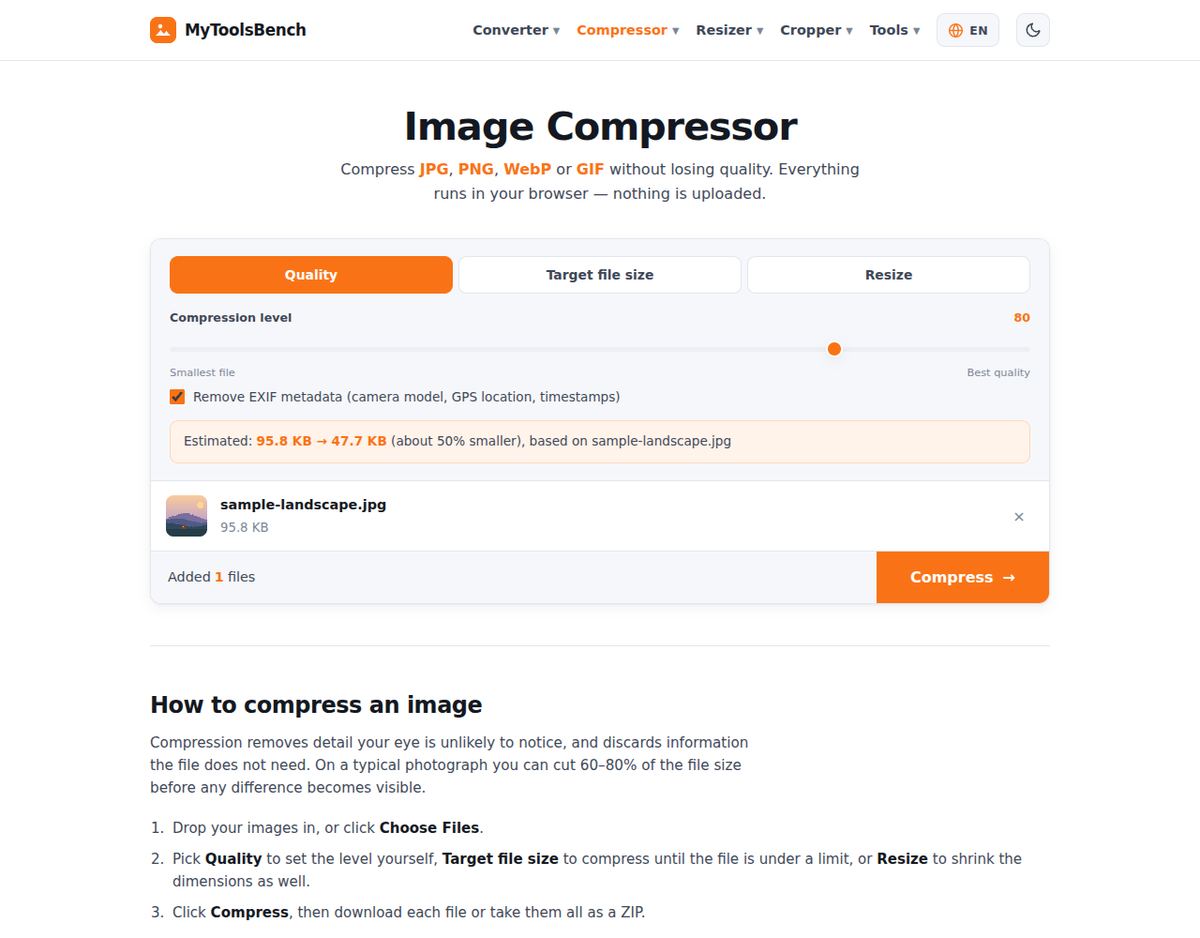
Compress JPG, PNG, WebP or GIF without losing quality. Everything runs in your browser — nothing is uploaded.
How to compress an image
Compression removes detail your eye is unlikely to notice, and discards information the file does not need. On a typical photograph you can cut 60–80% of the file size before any difference becomes visible.
- Drop your images in, or click Choose Files.
- Pick Quality to set the level yourself, Target file size to compress until the file is under a limit, or Resize to shrink the dimensions as well.
- Click Compress, then download each file or take them all as a ZIP.
Hit an exact size limit
Tell it "under 500 KB" and it works out the quality for you. Useful when an upload form, email attachment or job portal imposes a limit you have to meet.
See it before you save
The estimated size updates as you move the slider, and every result has a compare view so you can check the quality against the original at full size.
Nothing is uploaded
Your images are compressed by your own browser and never sent anywhere, so there is no size cap, no queue, and no copy of your photos on someone else's server.
Compress by format
Guides and presets for each format:
Compress under a file size
Keeps your image’s format — pick the limit you need:
JPEG under a file size
How much can I compress without it showing?
For photographs, quality 80 is the usual sweet spot — roughly a 70% reduction with no visible difference at normal viewing size. Below about 60 you start to see softening in fine detail and blocky patches in smooth areas like skies.
Flat graphics, screenshots and anything containing text behave differently. Sharp edges are exactly what lossy compression handles worst, so keep the quality above 85 or convert to PNG instead.
The honest answer is that it depends on the image, which is why the compare slider exists. Drag it across the result at full size and judge for yourself rather than trusting a number.
How it looks
Image Compressor on MyToolsBench, compressing a photo with a before/after preview:
Frequently asked questions
Does compressing reduce image quality?
For JPG, WebP and AVIF, yes — that is how they achieve small files. The point is to discard detail you cannot see. At quality 80 most photographs look identical while losing most of their file size. Use the compare view on any result to check before downloading.
Why did my PNG barely shrink?
PNG is lossless, so there is no quality dial to turn. This tool reduces the colour palette instead, which works well for logos, icons and flat graphics but does little for photographs. For a photograph stored as PNG, converting it to WebP or AVIF will save far more than compressing it ever could.
What does removing metadata do?
Photos carry EXIF data — camera model, settings, timestamp and often the GPS coordinates of where the picture was taken. Stripping it saves a little space and stops your images broadcasting where you were. It is on by default here.
How does the target file size option work?
It compresses the image repeatedly at different quality levels, narrowing down until it finds the highest quality that still fits under your limit. That takes a few extra moments per image but means you get the best possible result at the size you need.
Is there a limit on file size or how many images?
No. Compression runs inside your browser rather than on a server, so there is no upload, no queue and no cap. Very large images may take a moment on a slower device.
Are my images uploaded anywhere?
No. They are read and compressed by your own browser and never leave your device. You can disconnect from the internet once the page has loaded and it will still work.