 MyToolsBench
Image Watermark Tool
Add a text or logo watermark to your photos before sharing them — pick a corner, set the size and opacity, and apply it to a whole batch at once. Everything runs in your browser — nothing is uploaded. Need to crop or resize instead? Crop or resize.
A PNG with a transparent background works best, so the logo doesn't sit inside a solid box.
How it looks
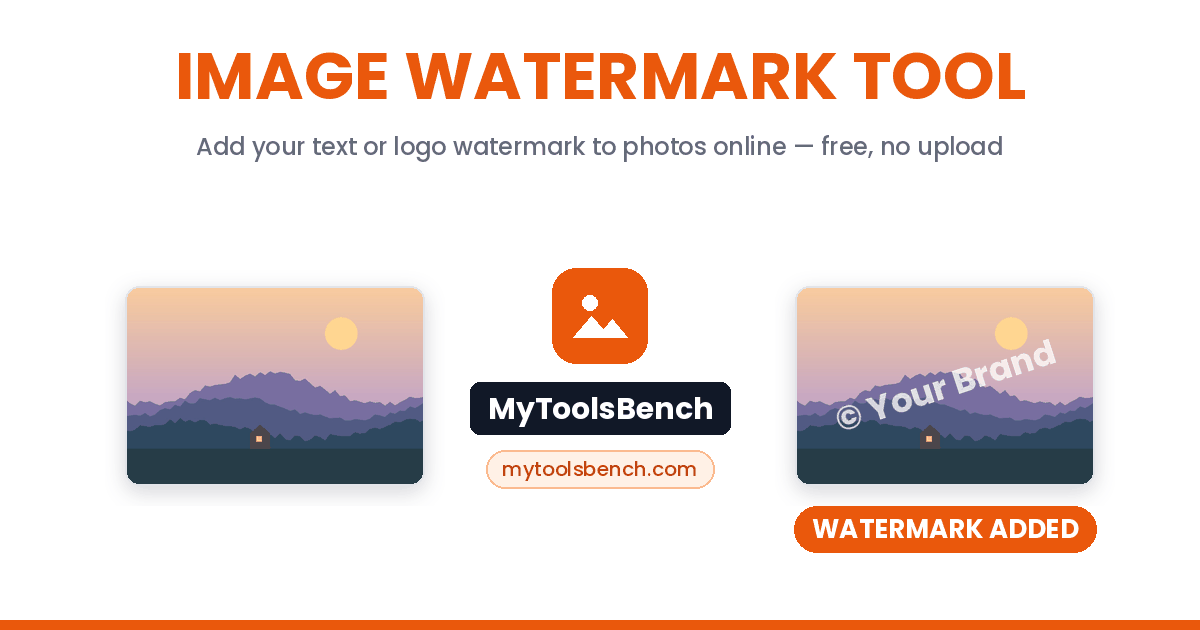
Image Watermark Tool on MyToolsBench, adding a text watermark — before and after:
How to add a watermark
A watermark discourages your photos from being reused without credit, without covering the image itself. Set it up once and it applies the same way to every photo in the batch.
- Add your images, or drop them in.
- Choose Text or Logo, set the size, colour or opacity, and pick a corner in the position grid. The preview updates as you adjust anything.
- Click Apply Watermark, then download each file or grab them all as a ZIP.
Text or logo
A name, a URL, or your own logo file — whichever fits how you share your work.
One setting, whole batch
Set the position, size and opacity once, then apply it to every photo you've added in one click.
Nothing is uploaded
The watermark is drawn onto each photo using the Canvas API, entirely on your own device.
Other image tools
A watermark protects the whole photo. For the other jobs, use one of these instead:
Getting a watermark that actually deters reuse
A watermark only works if removing it costs more effort than the image is worth. A small, faint mark tucked in one corner is trivial to crop out; the same mark repeated, larger, or placed over the subject itself is much harder to remove cleanly — but also more distracting to look at. Most people land on a middle ground: readable but not loud, positioned over detail rather than empty sky or a plain background, since a watermark on a flat area is the easiest kind to paint over.
Bottom-right is the default for a reason: it's where captions and UI overlays already tend to sit on social platforms, so a mark there reads as normal rather than as a defensive addition. Centre is the strongest deterrent, since it sits on the subject and can't be cropped away without losing the photo's point — worth it for a portfolio preview you don't want lifted wholesale, overkill for a casual snapshot.
Opacity is a trade-off, not a setting to maximise. Fully opaque text is easiest to read and easiest to spot as a copy claim, but it's also the most visually intrusive. Most working photographers land somewhere around 60–80%, and lower still for a logo watermark, which tends to read fine even quite faint since a familiar logo shape needs less contrast to be recognised than text does.
Frequently asked questions
Will the watermark look right on every photo in my batch?
Yes — size, opacity and position are all set as a percentage of each photo's own dimensions rather than a fixed pixel count, so the watermark looks proportionally the same whether a photo is small or large, portrait or landscape.
Does adding a watermark reduce image quality?
No, beyond whatever your chosen output format already applies. The watermark is drawn directly onto the full-resolution image; JPG output re-applies JPG's own lossy compression on save, the same as any JPG re-save, but the watermark itself adds no separate loss.
Can I remove a watermark once it's applied?
Not with this tool, and that's the point — a watermark that could be removed in the same tool that added it wouldn't deter anything. Keep your original, un-watermarked file if you might need it again later.
What image format should my logo be?
PNG with a transparent background works best. A logo saved as JPG will bring its background along as a solid rectangle, which sits on top of the photo as a visible box rather than blending into it.
Are my images or my logo uploaded anywhere?
No. The watermark is applied entirely in your browser using the Canvas API. Nothing is transmitted, stored or logged.